Starting with VCF 9.1.0, we can enable both an All Apps organization and a VM Apps organization in the same vCenter Server.
This is a desired feature, as most customers don’t want to transition from the old VM centric model (VM Apps) to the new modern object centric model (All Apps) all at once. With this option, the transition can happen gradually.
To configure this environment successfully, we must follow the steps in a specific order. Otherwise, the configuration will not work.
In this guide I’ll show you how to leverage this set up.
VM Apps Organization
Login into your VCF Automation Provider Portal and navigate to Feature Flags.
Enable the Mixed Tenancy Mode feature flag.
Note: We must enable this feature flag before create any organization.
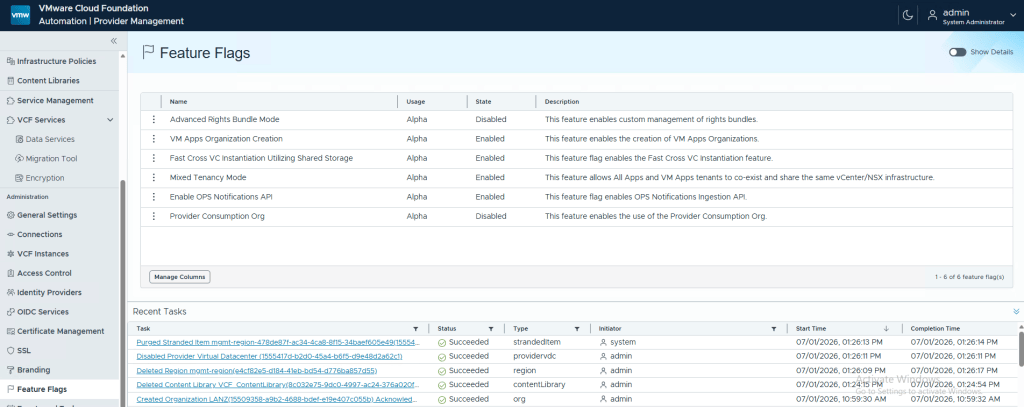
Once we have the flag enabled, navigate to the Organizations page.
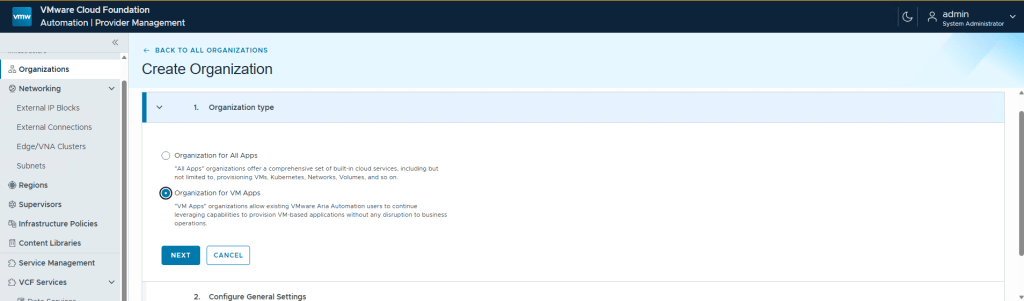
You must create the VM Apps organization first. This is mandatory for the mixed-tenancy setup to work.
The steps to creating a new organization are really straightforward, so I won’t go into detail here.
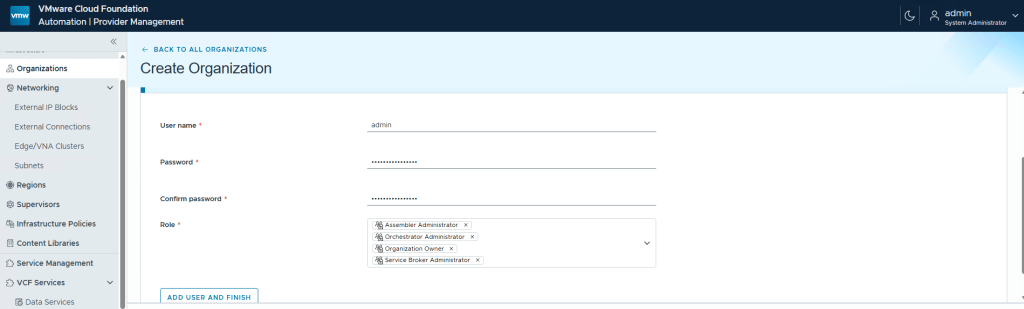
Creating the organization alone is not enough. After creating it, you must also add the required integrations and cloud accounts.
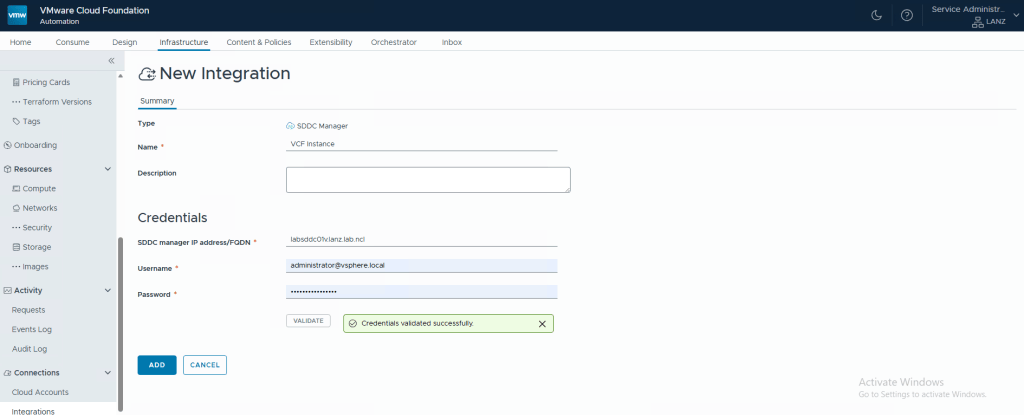
First, add your SDDC Manager.
Open the VM Apps Organization Portal and navigate to Infrastructure > Integrations.
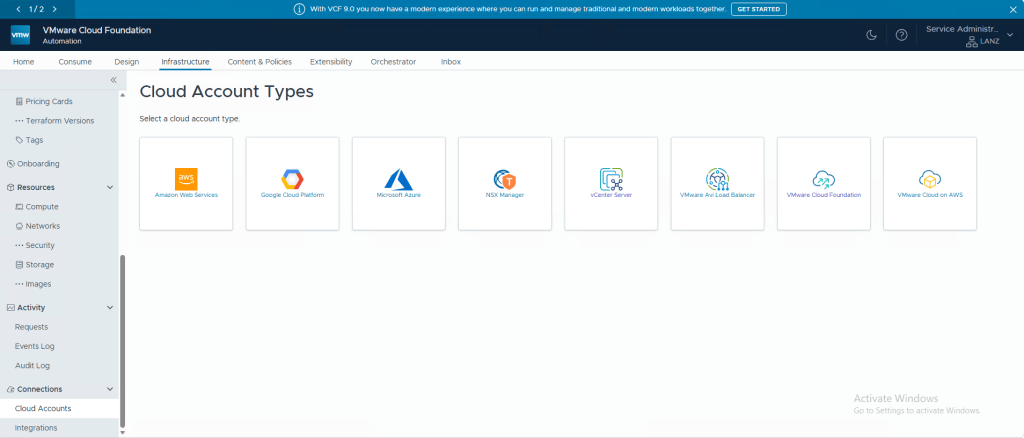
Now, under Cloud Accounts Types, add the VMware Cloud Foundation one.
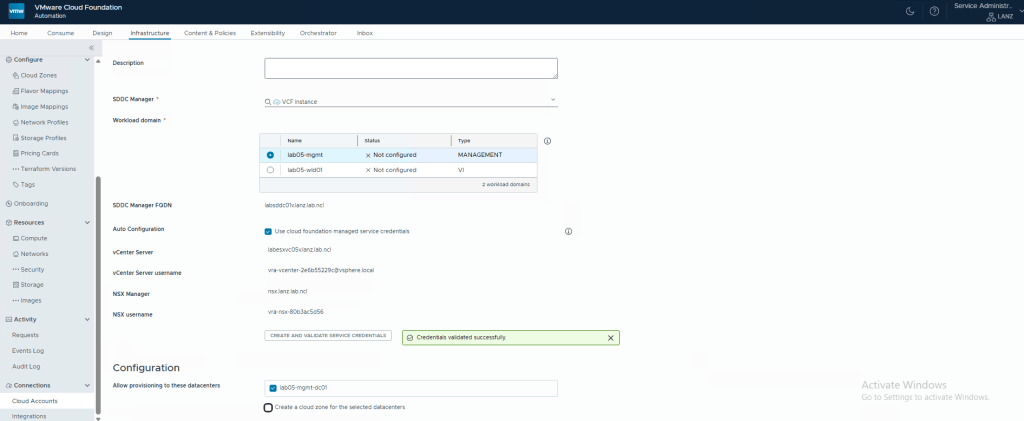
Select the SDDC Manager instance you added previously, followed by the workload domain and datacenters.
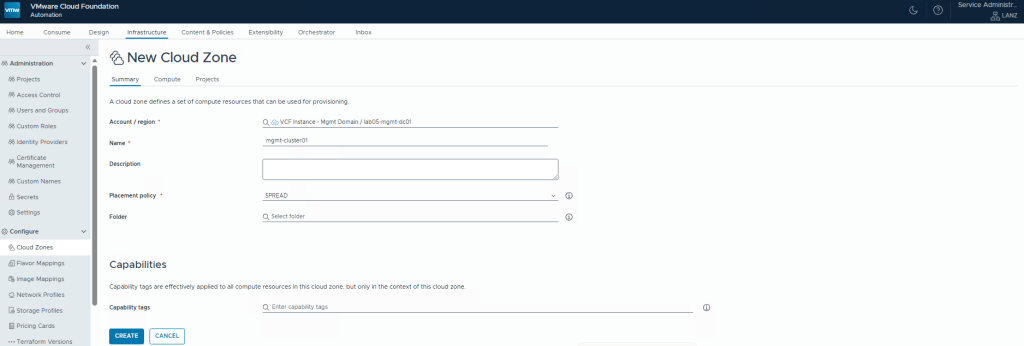
Finally, create a Cloud Zone so that the VM Apps organization can provision workloads.
Note: You must create the Cloud Zone before configuring the vCenter Server for the All Apps organization. Otherwise, you will no longer be able to create it.
All Apps Organization
Before creating an All Apps organization, you must configure three components.
Region
During the Region creation, the NSX Manager selection will show the
flagged ‘Used by VM Apps Organization’. This is the behavior we expect.
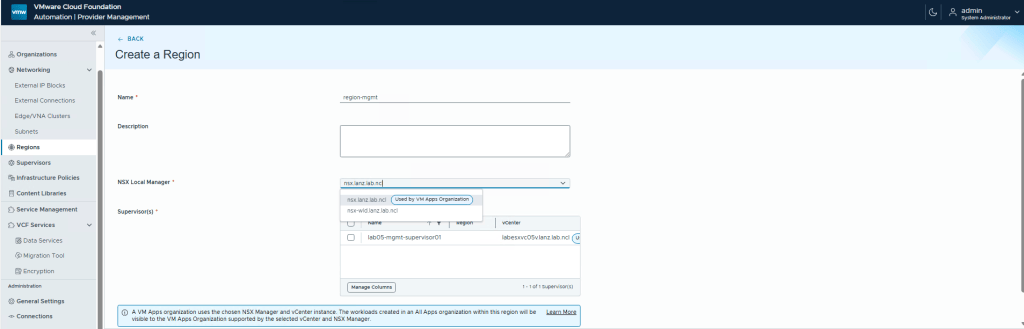
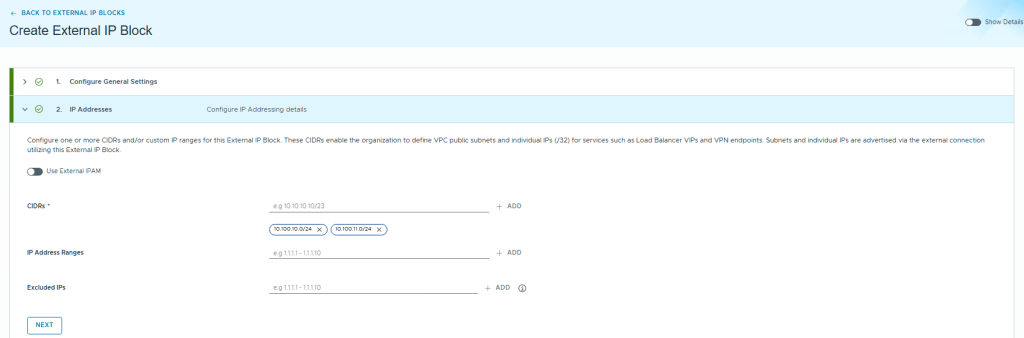
External IP Blocks
Here, you define the external CIDR blocks that will be assigned to your VPCs and subnets. The CIDR blocks provided here must be routable within your datacenter.
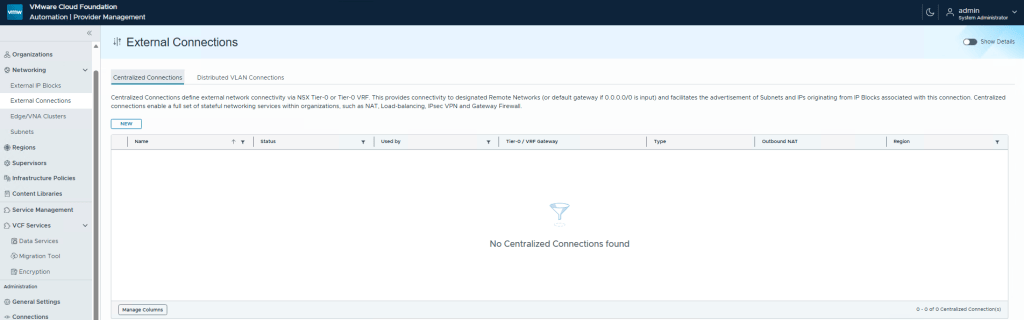
External Connections – Centralized/Distributed
The external connection determines how the Transit Gateway connects to the external network.
- Centralized – Requires at least one Edge Cluster
- Distributed – Requires a VNA cluster.
The pros and cons of each method can be found in the Broadcom documentation.
Organization
Finally, you’ll have both of your organizations created and ready to use!

← Back to the field notes